外部リンクチェックツールの作り方
パソコン上でホームページを作成している場合、Pythonと生成AIを使えば、外部リンクのリンク切れチェックツールを簡単に作ることができます。
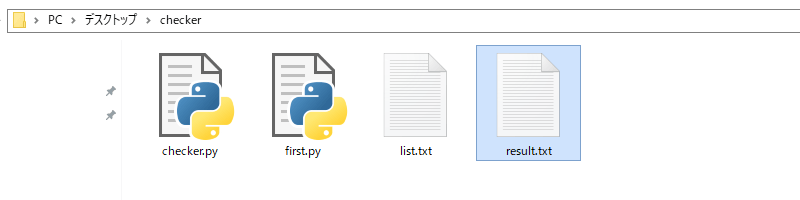
今回、当サイトで作成したチェックツールは以下のようなものです。
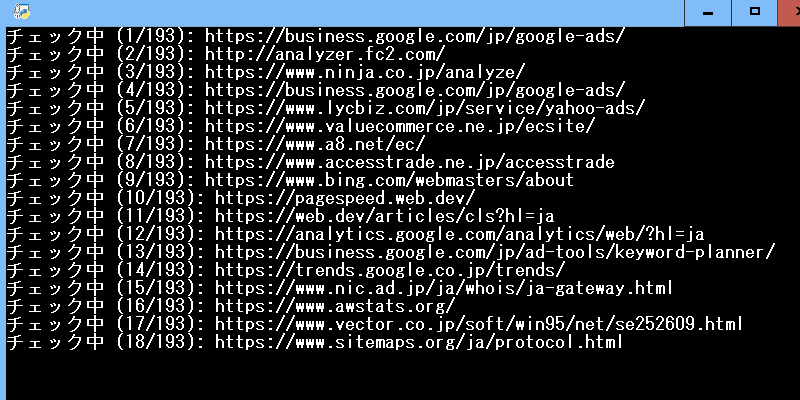
こちらを実行すると、外部リンク一覧のステータスコードを出力してくれます。
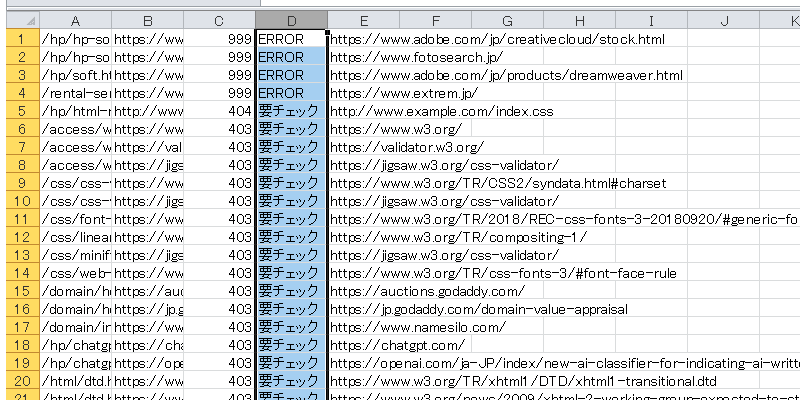
結果がテキストファイルで出力されるため、それをそのままExcellに貼り付ければ、404などで要チェック状態となっている外部リンクの一覧を調べることができます。
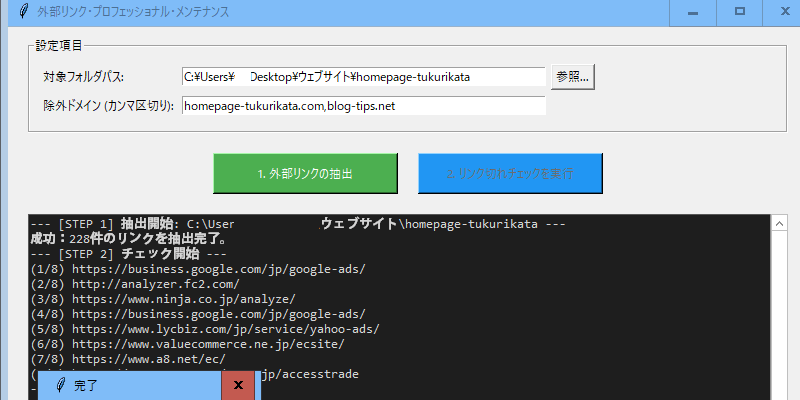
さらに、アプリ化するとボタンを押すだけでチェックできるので使いやすくなります。
この処理のプロセスは3つに分けてますが、以下のとおりです。
①ホームページファイルから「外部リンクのURL一覧」を抽出する
(※first.pyを実行してlist.txtを出力)
②一覧にある外部リンクのステータスコードをチェックして結果を出力する
(※checker.pyを実行してresult.txtを出力)
③出力結果をExcellに貼り付け、ステータスコードを降順で並べ替えて確認する
こちらのツールは、パソコン上にある静的なHTML形式のホームページファイルをチェックする用途のため、ウェブ上のホームページのチェックをすることはできません。
ただ、WordPressのようなウェブ上のサイトでも、トップページからクロールして巡回していくか、もしくはサイトマップのURL一覧を利用すれば、簡単にチェックできるかと思います。
外部リンク一覧を抽出するコードをPythonで作成
まずはパソコン上にあるホームページファイルをPythonで探索し、外部リンクが存在するファイル名とその「外部リンクの一覧」を抽出するコードを作成します。
ファイル名は任意ですが、ここではfirst.pyとして作成してます。
■first.py
※赤い文字の2箇所は書き換えが必要です。自サイトの「ホームページフォルダのあるパス」と「除外するドメイン名」に書き換えます。
import os
import glob
import re

base_dir = r"C:/Users/ユーザー名/Desktop/example.com/"
EXCLUDE_DOMAINS = ["example.com"]
output_file = "list.txt"
# href="//..." または href="http..." の両方に対応
link_pattern = re.compile(r'href="((?:https?:)?//[^"]+)"')

with open(output_file, 'w', encoding='utf-8') as f_out:
    for file_path in glob.glob(os.path.join(base_dir, "**", "*.html"), recursive=True):
        rel_path = file_path.replace(base_dir, "").replace("\\", "/")

        try:
            with open(file_path, 'r', encoding='utf-8', errors='ignore') as f_in:
                content = f_in.read()
                links = link_pattern.findall(content)
                for link in links:
                    is_excluded = any(domain in link for domain in EXCLUDE_DOMAINS)
                    if not is_excluded:
                        f_out.write(f"{rel_path} {link}\n")
        except:
            continue

print(f"完了:// から始まるリンクを含むリストを {output_file} に保存しました。")コピー

ホームページフォルダのパスについては、ルートディレクトリにあるindex.htmlのファイルを右クリックし、「場所」の箇所をコピーすれば、それがパスになるはずです。
base_dir = r"ホームページファイルがあるフォルダのパス"
除外するドメイン名については EXCLUDE_DOMAINS = ["example.com"] の箇所になります。こちらに自サイトのドメイン名を設定しておけば、膨大な数の内部リンクを除外することができます。相互リンク先がある場合も、以下のようにカンマで区切って追加すれば、除外されます。
EXCLUDE_DOMAINS = ["example.com","hogehoge.com"]
このコードを実行しますと、抽出結果の一覧がlist.txtで出力されます。
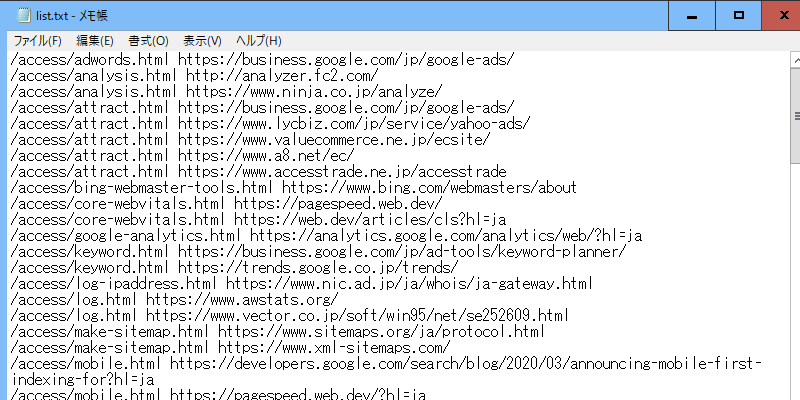
この内容を確認し、チェックする必要がない外部リンクを削除した上で上書き保存します。同じ外部リンクのURLがある場合は、それぞれ別のページでも掲載されているはずです。すべてチェックするなら、そのままで問題ありません。
ステータスコードをチェックするファイルを作成
次に、出力された外部リンク一覧のステータスコードを確認するファイルを「checker.py」などとして作成します。
このステータスコードをチェックする際、HTTPリクエストで通信するため、Pythonのrequestsのライブラリも必要になります。このrequestsは標準ではインストールされていないため、あらかじめpipしておくとよいでしょう。
pip install requests■checker.py
※外部リンク先へのアクセスが拒否され、403 Forbiddenが多発するようでしたら、ヘッダー情報の箇所のUser-Agentを適当なものに変更してみるとよいかもしれません。
import requests input_file = "list.txt" output_file = "result.txt" HEADERS = {'User-Agent': 'Mozilla/5.0 (Windows NT 10.0; Win64; x64) AppleWebKit/537.36 (KHTML, like Gecko) Chrome/120.0.0.0 Safari/537.36'} def check_link(file_info, url): # // から始まる場合は https: を補完 request_url = "https:" + url if url.startswith("//") else url try: response = requests.get(request_url, headers=HEADERS, timeout=10, allow_redirects=True, stream=True) final_url = response.url if response.history: # リダイレクトあり:301, 302 など status = response.history[0].status_code label = "REDIRECT" else: # リダイレクトなし status = response.status_code # 200以外は要確認ラベル label = "OK" if status == 200 else "要チェック" return f"{file_info} {url} {status} {label} {final_url}" except Exception as e: # 接続エラー(タイムアウトやドメイン消失など) return f"{file_info} {url} 999 ERROR {url}" with open(input_file, 'r', encoding='utf-8') as f_in, open(output_file, 'w', encoding='utf-8') as f_out: lines = f_in.read().splitlines() for i, line in enumerate(lines, 1): parts = line.split(" ", 1) if len(parts) < 2: continue file_info, url = parts[0], parts[1] print(f"チェック中 ({i}/{len(lines)}): {url}") result = check_link(file_info, url) f_out.write(result + '\n') print(f"\n完了!result.txt を Excel に貼り付け、コード列やラベル列でソートしてください。")
このコードを実行すると、「list.txt」にある外部リンク一覧を読み込んでステータスコードをチェックし、その結果が「result.txt」で出力されます。
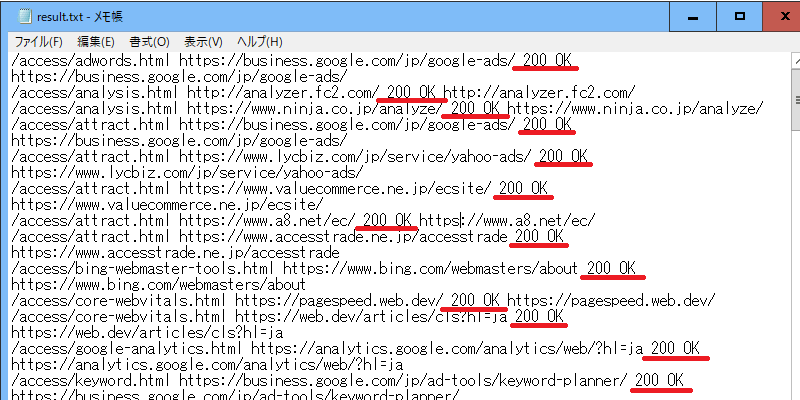
ステータスコードが「200 OK」で表示されていれば正常ですが、「404」の場合はリンク切れになっている可能性が高いです。
最後にExcellなどに貼り付け、ステータスコードの列を「降順」で並べ替えた上で、リンク切れの状態を確認して修正します。Excellがなければ、Googleのスプレッドシートでもよいかと思います。
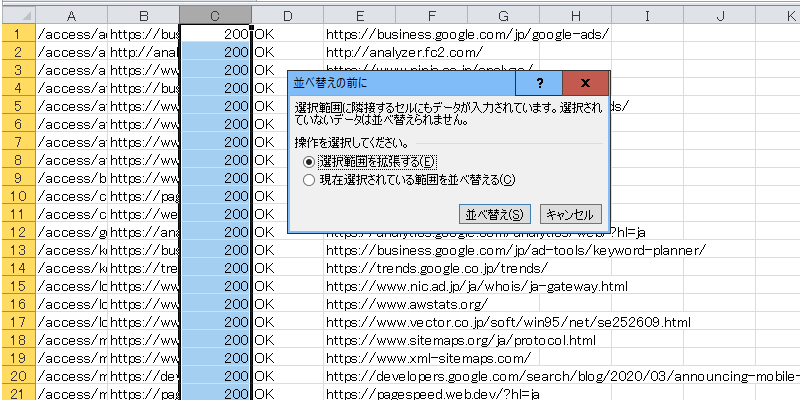
「降順」で並べ替えれば、数字の大きい500系、400系の順で表示されるため、URLを一括で選択して1つづつブラウザで直接アクセスして確認してみることをおすすめします。
デスクトップアプリ化でボタン一つで簡単チェック
上記まででツールとして機能しますが、アプリ化しておくとボタン一つで簡単にチェックできて便利です。上記と同様、赤い文字の箇所のソースコードを修正するか、もしくはツール上で参照や入力するなどして設定できます。

■app.py
import os import glob import re import requests import tkinter as tk from tkinter import scrolledtext, messagebox, filedialog import threading import configparser class LinkCheckerApp: def __init__(self, root): self.root = root self.root.title("外部リンクチェッカー") self.root.geometry("800x700") # 設定ファイルの準備 self.config_file = "config.ini" self.config = configparser.ConfigParser() self.load_settings() # --- 設定項目エリア --- config_frame = tk.LabelFrame(root, text="設定項目", padx=10, pady=10) config_frame.pack(pady=10, padx=20, fill=tk.X) # 1. フォルダパス tk.Label(config_frame, text="対象フォルダパス:").grid(row=0, column=0, sticky="w") self.path_entry = tk.Entry(config_frame, width=60) self.path_entry.insert(0, self.config.get("Settings", "base_dir", fallback=r"C:/Users/ユーザー名/Desktop/example.com/")) self.path_entry.grid(row=0, column=1, padx=5) self.path_btn = tk.Button(config_frame, text="参照...", command=self.browse_folder) self.path_btn.grid(row=0, column=2) # 2. 除外ドメイン tk.Label(config_frame, text="除外ドメイン (カンマ区切り):").grid(row=1, column=0, sticky="w", pady=5) self.domain_entry = tk.Entry(config_frame, width=60) self.domain_entry.insert(0, self.config.get("Settings", "domains", fallback="example.com, yourdomain.com")) self.domain_entry.grid(row=1, column=1, padx=5, pady=5) # --- 実行ボタンエリア --- btn_frame = tk.Frame(root) btn_frame.pack(pady=10) self.extract_button = tk.Button(btn_frame, text="1. 外部リンクの抽出", command=self.start_extract_thread, bg="#4CAF50", fg="white", width=20, height=2) self.extract_button.grid(row=0, column=0, padx=5) self.check_button = tk.Button(btn_frame, text="2. リンク切れチェックを実行", command=self.start_check_thread, bg="#2196F3", fg="white", width=20, height=2) self.check_button.grid(row=0, column=1, padx=5) # 3. クリアボタン(追加) self.clear_button = tk.Button(btn_frame, text="3. TXTファイルのクリア", command=self.clear_files, bg="#f44336", fg="white", width=20, height=2) self.clear_button.grid(row=0, column=2, padx=5) # ログ表示エリア self.log_area = scrolledtext.ScrolledText(root, state='disabled', height=20, bg="#1e1e1e", fg="#d4d4d4", font=("Consolas", 10)) self.log_area.pack(pady=10, padx=20, fill=tk.BOTH, expand=True) self.HEADERS = {'User-Agent': 'Mozilla/5.0 (Windows NT 10.0; Win64; x64) AppleWebKit/537.36 (KHTML, like Gecko) Chrome/120.0.0.0 Safari/537.36'} self.OUTPUT_LIST = "list.txt" self.RESULT_FILE = "result.txt" def load_settings(self): if os.path.exists(self.config_file): self.config.read(self.config_file, encoding='utf-8') if not self.config.has_section("Settings"): self.config.add_section("Settings") def save_settings(self): self.config.set("Settings", "base_dir", self.path_entry.get()) self.config.set("Settings", "domains", self.domain_entry.get()) with open(self.config_file, "w", encoding='utf-8') as f: self.config.write(f) def log(self, message): self.log_area.configure(state='normal') self.log_area.insert(tk.END, message + "\n") self.log_area.see(tk.END) self.log_area.configure(state='disabled') self.root.update_idletasks() def browse_folder(self): folder = filedialog.askdirectory() if folder: self.path_entry.delete(0, tk.END) self.path_entry.insert(0, folder.replace("/", "\\")) self.save_settings() def get_config(self): self.save_settings() base_dir = self.path_entry.get().strip() domains = [d.strip() for d in self.domain_entry.get().split(",") if d.strip()] return base_dir, domains # --- ファイル削除機能 --- def clear_files(self): files_to_delete = [self.OUTPUT_LIST, self.RESULT_FILE] existing_files = [f for f in files_to_delete if os.path.exists(f)] if not existing_files: messagebox.showinfo("情報", "削除するファイルはありません。") return if messagebox.askyesno("確認", f"以下のファイルを削除しますか?\n{', '.join(existing_files)}"): for f in existing_files: try: os.remove(f) self.log(f"削除完了: {f}") except Exception as e: self.log(f"削除失敗: {f} ({e})") messagebox.showinfo("完了", "ファイルを削除しました。") def start_extract_thread(self): threading.Thread(target=self.run_extract, daemon=True).start() def run_extract(self): base_dir, my_domains = self.get_config() if not os.path.exists(base_dir): messagebox.showerror("エラー", "指定されたフォルダが見つかりません。") return self.extract_button.config(state='disabled') try: self.log(f"--- [STEP 1] 抽出開始: {base_dir} ---") link_pattern = re.compile(r'href="((?:https?:)?//[^"]+)"') count = 0 with open(self.OUTPUT_LIST, 'w', encoding='utf-8') as f_out: for file_path in glob.glob(os.path.join(base_dir, "**", "*.html"), recursive=True): rel_path = file_path.replace(base_dir, "").replace("\\", "/") try: with open(file_path, 'r', encoding='utf-8', errors='ignore') as f_in: content = f_in.read() links = link_pattern.findall(content) for link in links: if not any(dom in link for dom in my_domains): f_out.write(f"{rel_path} {link}\n") count += 1 except: continue self.log(f"成功:{count}件のリンクを抽出完了。") messagebox.showinfo("完了", f"{count}件抽出しました。") finally: self.extract_button.config(state='normal') def start_check_thread(self): threading.Thread(target=self.run_check, daemon=True).start() def run_check(self): if not os.path.exists(self.OUTPUT_LIST): messagebox.showwarning("警告", "先に抽出を行ってください。") return self.check_button.config(state='disabled') try: self.log("--- [STEP 2] チェック開始 ---") with open(self.OUTPUT_LIST, 'r', encoding='utf-8') as f_in, open(self.RESULT_FILE, 'w', encoding='utf-8') as f_out: lines = f_in.read().splitlines() total_count = len(lines) # ここで先に全件数を変数に入れます for i, line in enumerate(lines, 1): parts = line.split(" ", 1) if len(parts) < 2: continue file_info, url = parts[0], parts[1] # ログ表示に total_count を使用 self.log(f"({i}/{total_count}) {url}") req_url = "https:" + url if url.startswith("//") else url try: # タイムアウトを10秒に設定 res = requests.get(req_url, headers=self.HEADERS, timeout=10, allow_redirects=True, stream=True) if res.history: status, label = res.history[0].status_code, "REDIRECT" else: status, label = res.status_code, "OK" if res.status_code == 200 else "CHECK" f_out.write(f"{file_info} {url} {status} {label} {res.url}\n") except: f_out.write(f"{file_info} {url} 999 ERROR {url}\n") self.log("--- すべて完了 ---") messagebox.showinfo("完了", "result.txt が完成しました。") except Exception as e: self.log(f"エラー発生: {e}") finally: self.check_button.config(state='normal') if __name__ == "__main__": root = tk.Tk() app = LinkCheckerApp(root) root.mainloop()
上記と同様に、出力されたresult.txtをExcellに貼り付けて並べ替えれば、リンク切れを簡単に確認することができます。
ちなみに、上記アプリはパソコンのPythonを使用して起動するため、Pythonがインストールされていないパソコンでは使用できません。
その点、.exe形式でアプリ化すれば、起動に必要なPython自体も含めてパッケージ化されるため、同じWindows環境なら.exe単体で機能することができます。その分、多少はファイルサイズが大きくなりますが、せいぜい数十MB程度です。
このexe化のやり方については、まずはライブラリのpyinstallerをpipしてインストールします。
pip install pyinstaller次に、上記のapp.pyを指定して実行するだけです。
pyinstaller --onefile --noconsole app.pyそうすると、distフォルダ内に完成品のapp.exeが出来ているはずなので、適当な場所に取り出して使用するとよいでしょう。buildフォルダについては、exe化する過程で出たファイルなので削除してかまいません。